
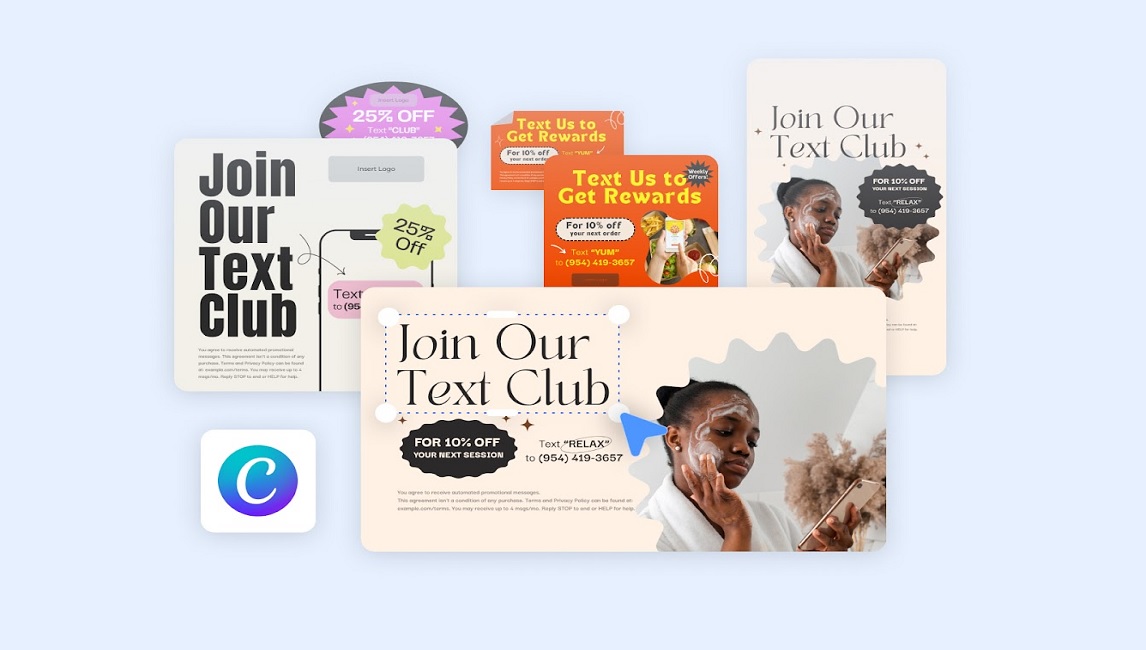
Creating content in today’s time is not just about what you post, but how it looks. No matter if you are a business owner, a social media manager, or a freelancer, your visuals matter a lot. Do you know the challenge involved in creating the visuals? Designing for multiple platforms – Facebook, Instagram, LinkedIn, Pinterest, or even email – can prove to be quite time-consuming. This is where Canva comes in.
Canva offers thousands of templates. But the real magic is finding those few very versatile templates that can adapt to almost every platform. In this post, let us explore four Canva templates that work everywhere & how to use them very effectively.
1. The Social Media Post Template
Social media is very fast, visual, & competitive. A strong post design very efficiently grabs attention within a matter of seconds. A good social media post template should ideally be flexible, easy to edit, & should match different sizes of platforms.
Why This Template Works:
- This template is a great choice as it can be resized for Facebook, Instagram, LinkedIn, or Twitter with just one click.
- This template comes with pre-set text areas for inserting headlines & captions.
- Works for quotes, promotions, updates, or announcements.
How to use it:
- You ought to keep the text minimal: 3 – 5 words for the headline.
- Use some high-contrast colors for highlighting or emphasizing the key messages.
- You also have the option of adding your logo or brand watermark.
Best for:
- It is great for special offers or flash sales.
- It can be relevantly used for motivational tips and quotes.
- The same is also an ideal choice for event or webinar announcements.
Pro Tip: Canva’s “Magic Resize” feature flexibly lets you create one design & then instantly adjust it for other platforms. You may start with an Instagram post (1080×1080 px). Then you will have the option to resize for LinkedIn or Facebook.
2. The Presentation or Slide Deck Template
Your brand necessarily needs to communicate, not just on social media, but also in webinars, meetings, and several other online events. A clean slide template makes you look absolutely professional instantly.
Why This Template Works:
- This template can double as a pitch deck, product presentation, or even a very impressive carousel post for LinkedIn.
- It comes with ready-to-use layouts: title slide, content slide, image slide, & CTA slide.
- Supports both text-heavy as well as visual storytelling.
How to use it:
- Choose a color palette that relevantly matches your brand.
- Use bullet points instead of paragraphs for the purpose of quick reading.
- Add one key visual per slide.
Best for:
- Webinars or online workshops.
- Intensive business pitches.
- Sharing use cases or reports.
Pro Tip: The same slides can also be exported as PDFs or images. Post them as a carousel on LinkedIn or Instagram to boost engagement.
3. The Infographic Template
People prefer and love quick, & visual information. Infographics break down the various complex ideas into simple visuals. With Canva, you do not need a designer to make one.
Why This Template Works:
- Works on LinkedIn, Pinterest, blogs, & email newsletters.
- This template is easy to customize with your statistics or data.
- This template is visually appealing & shareable.
How to use it:
- Pick a vertical layout (Pinterest-friendly: 1000×1500 px).
- Limit the text to bite-sized points.
- Use icons & illustrations to guide the eyes of the readers.
Best for:
- Step-by-step guides.
- Statistics or research highlights.
- Educational posts.
Pro Tip: Repurpose one infographic across platforms:
- Post the full version on Pinterest.
- Break it into small sections for Instagram Stories.
- Add it to your blog to add SEO value.
4. The Email Header or Banner Template
Email marketing is still one of the strongest marketing tools. A simple banner or header instantly makes your email look completely polished.
Why This Template Works:
- It fits most email marketing tools like HubSpot or Mailchimp.
- This template can be adapted into blog headers or website banners.
- It works well for newsletters, promotions, or special events.
How to use it:
- It is wise to keep the design minimal & well-aligned with your brand colors.
- You should add a clear headline: 4 – 6 words max.
- Use a single call-to-action (CTA).
Best for:
- Product launches.
- Weekly newsletters.
- Seasonal greetings or offers.
Pro Tip: Save your banner as a template in Canva. Update it weekly with new text or images instead of designing from scratch.
Why These Four Templates Are Considered to be Universal?
These templates are not random picks for sure. They share three qualities that make them work across numerous platforms:
- Easy to Customize – Change colors, text, or images in minutes.
- Multi-Platform Ready – Works for Facebook, Instagram, LinkedIn, emails, blogs, & more.
- Consistent Branding – They allow you to create a cohesive look for your brand everywhere.
When you use the same set of templates, your brand feels professional, consistent, and instantly recognizable.
How to Make These Templates Work for You?
Pick a Consistent Color Palette
- You may choose 3 – 4 colors that represent your brand.
- Apply them across all the templates.
Use Brand Fonts
- Canva lets you upload your fonts (in the Pro version).
- Or you may use free fonts that match your style: bold for headlines, & clean for body text.
Add Your Logo or Watermark
- Place it in a consistent corner (top-right or bottom-left).
- Keep it subtle but visible.
Plan Content in Advance
- Create a monthly calendar.
- Assign the templates for a week in one go in advance: Infographic for Mondays, Social Post for Wednesdays, & Banner for Fridays.
Test & Optimize
- See which of the templates receive the most engagement.
- Adjust colors, headlines, or formats accordingly.
Common Mistakes to Avoid
Even the best templates can fail if used incorrectly.
- Too much text: Crowds the design & reduces impact.
- Clashing colors: Stick to your brand palette.
- Ignoring platform specs: A Facebook post is not the same size as a Pinterest pin.
- No clear message: Every template should have one purpose – inform, promote, or inspire.
Conclusion
Creating content for multiple platforms does not have to be stressful always. With the right Canva templates, you can easily and conveniently design once & share everywhere. The four templates—Social Media Post, Presentation/Slide Deck, Infographic, & Email Header—cover almost every need of the professionals in their day to day works.
They save a lot of time, maintain consistency, & help your brand look professional without hiring a full-time designer.
If you are just starting, pick one template today. You can customize it with your colors & fonts. Then reuse it across various platforms. Within weeks, you will notice two things:
- Less time spent on design.
- More attention on your content.
That’s the power of using Canva templates smartly and professionally in your daily work life.